Translate

Friday, August 8, 2014

Traveling Light: Putting Together a Photography Kit for Travel


Traveling Light: Putting Together a Photography Kit for Travel

Taking photographs on holiday or whilst traveling for any other reason is one of the things many of us look forward to. The problem is travel, and in particular air travel, has become hard work – baggage weight and size limits, limits on liquids all add up to a potentially stressful journey. When you get to your destination, it may be hot and full of tourists, not the sort of place for carrying a heavy load of kit. Today we are going to look at some options for traveling light.

The Camera

Obviously this is the most important part in the kit, and you might consider that taking our pro level DSLR is the only option. In reality, image quality between high end DSLRs and more consumer level cameras is negligible these days. If you have a secondary lower level DSLR body, consider taking that and a compact for back up. You will gain significant space and weight savings and your camera will be less of a target for thieves. If you travel a lot, it is well worth considering a mirrorless system. Cameras such those from Fuji and Olympus have extensive lens systems, and fantastically light and small and produce image quality on a par with or even exceeding equivalent DSLRs
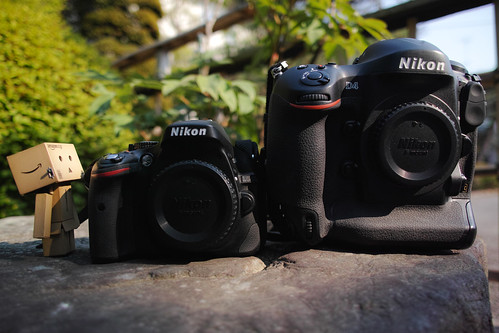
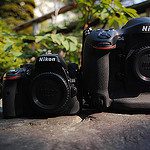
D5200 is compact enough to carry everyday and everywhere
Consider a smaller camera, even a mirrorless system. Photo by Takashi Hososhima

Lenses

Whilst it might be tempting to take the big gun f2.8 zooms, in reality they are a significant drag in terms of both weight and size. A 24-70 and 70-210 f2,8s will add 2-3 kgs of weight to your bag. Some other options are to take a carefully selected set of fast primes or perhaps a single super zoom. Modern super zooms in the 18-200 range have vastly improved optics over their predecessors and will cover virtual all the focal lengths in one lens. Returning to mirrorless systems, again the lenses are significantly smaller yet with superb quality, another option to consider.
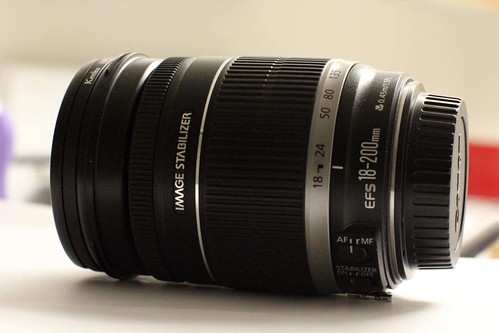
IMG_2460: Canon Zoom Lens
A superzoom may replace several lenses. Photo by EagleCam

The Bag

We spend so much time considering our camera and lenses yet so little on the the bag to carry them. A good travel bag's first priority is simple. It must fit inside the baggage dimensions of most major airlines. Putting your beloved equipment in checked luggage is not an option that should ever be considered. Beyond that, the bag needs to be comfortable, remember you may wear this many hours per day, the load should be spread evenly, it should be sturdy enough to withstand the knocks and bumps of day to day travel and it should be waterproof. Backpack or over the shoulder is an entirely personal preference but either way the bag should be easily accessible.

The Tripod

A tripod is an interesting dilemma for any traveling photographer. With high ISO quality so good now you may consider not taking one. However, if you are looking to do any shots that will involve conveying motion, car headlight trails, ethereal misty waterfalls etc, you are going to need a tripod. The best option here is a set of lightweight carbon fibre legs and a ball and socket head. Although not cheap, carbon fibre legs are often half the weight of regular aluminium or steel tripods. A ball and socket head is generally smaller and lighter than a pan and tilt and quicker to use. The downside is they are not quite as easy to position accurately. As an alternative you can also consider a lightweight monopod, with good technique these can be invaluable bits of kit.
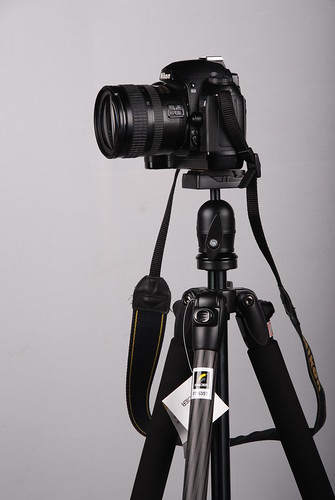
WF Fancier 535 carbon fiber tripod
Carbon fibre tripods save significant weight. Photo by F 5.6

Flash

Flashguns are another dilemma when traveling. If you are the sort of person that likes to take outdoor portraits of locals then a flash might be well worth taking. Its worth looking for a smaller less powerful model to save space and weight. Don't forget also that batteries and chargers are all going to add weight too.

Filters

The obvious option for filters is to use a square filter system such as Cokin or Lee. The advantages are that you only need one of each filter plus a filter ring adapter for each lens as opposed to potentially a set of circular filters for each lens. If you already have a set of circular filters, the other options here are step down rings. These allow you to adapt a larger filter to fit on a smaller lens.
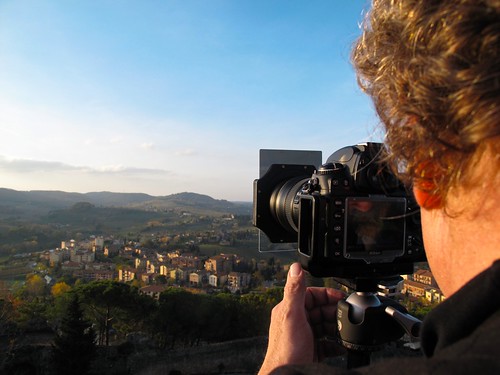
At Work
A Square filter system minimizes the need for duplicates. Photo by Mark Mitchell

Traveling as a photographer should be fun and stress free. For it to be that way, we need to make informed decisions on what kit we take with us. Think about the types of shots you generally take and build your kit around that. For the ultimate in creative freedom, consider taking one camera and one prime. You will find the restrictiveness of a single lens will actually make you much more creative in your approach.
Traveling Light: Putting Together a Photography Kit for Travel

Taking photographs on holiday or whilst traveling for any other reason is one of the things many of us look forward to. The problem is travel, and in particular air travel, has become hard work. When you get to your destination, it may be hot and full of tourists, not the sort of place for carrying a heavy load of kit. Today we are going to look at some options for traveling light.


Thursday, July 31, 2014

How to recover deleted photos from a memory card - CNET


How to recover deleted photos from a memory card

Just deleted an important batch of images from your memory card? Never fear, here's how to undelete them for Mac and PC users.

"Uh oh."

Those are probably the first two words you'll utter when you realise your photos have disappeared. If you've accidentally formatted your card or you suspect it has become corrupted, there are ways to recover your images. Here's how to get started.

You will need a card reader, a computer, the memory card in question and nerves of steel.

Step 1: Don't do anything to your memory card once you realise photos have been deleted. This means, don't take any more photos on the card and remove it from the camera immediately.

Step 2: Select a recovery suite. The software mentioned in this tutorial is Recuva for Windows and PhotoRec for Mac, which are both free options.

Bear in mind that there are plenty of other options out there, and you may already have one that was included with your memory card, if it was from vendors such as Lexar or SanDisk.

memorycard.jpg
Dave Cheng/CNET

Step 3: Install and set up the software on your PC or Mac.

Step 4: Let's start with Recuva first. Start up the program and choose what sorts of files you want to try and retrieve. In this tutorial we're looking for photos, but Recuva also gives you the option of finding a number of other file types.

recuva-photorec.jpg
Recuva can also find many other file types. Screenshot by Lexy Savvides/CNET

Click through the menu until you reach the screen telling you in which location to look. Plug your card reader into your computer and select the root directory of where your camera stores its image files -- provided it hasn't disappeared when the card was formatted or the pictures were deleted. This is typically a folder called DCIM, or the name of the camera manufacturer or model.

For PhotoRec, the process looks a little more complicated, as it's a command-line interface rather than a graphical one. Don't be scared off though, as it's quite easy to use once you get accustomed to it.

Start up PhotoRec and enter your Mac password if prompted, so the program can have access to all drives. Then, select the drive that you want to recover (i.e. your memory card) using the arrow keys to highlight the correct option. It may not be named how you expect, so use the size to give you an indication of which drive is the right one.

Press enter to proceed, and choose the FAT16/32 partition in order to scan the directory structure set up by your camera. Press enter to keep going to the next menu, and select the Other option (FAT/NTFS).

Continue to the next screen using the enter key. This next selection will tell the program where to look for the files. If you suspect the memory card is corrupted, use the "Whole" selection. Otherwise for deleted files, select "Free". Hit enter again and select where to save the recovered files -- use the C key to confirm. Then, start the recovery process.

photorec-run.jpg
Running the scan in PhotoRec Screenshot by Lexy Savvides/CNET

Step 5: Run the scan and see what files it turns up. Hopefully you will get some results here, which means the software has found your images.

recuva-recovered.jpg
The "health" of your files indicated by green, orange or red lights. Screenshot by Lexy Savvides/CNET

If you chose to search only for pictures in step 4, it will only show up standard file formats like JPEG. If you're looking for raw files and they're not showing up, there is one more step you can do.

In Recuva, click "Switch to advanced mode", which will show you what file types the software is looking for. All you have to do is add the file extension of your camera's raw format. This is typically something like .CR2, .NEF or .ARW depending on your camera brand. If in doubt, check your camera manual.

recuva-filetypes.jpg
Add your raw file extension to the box circled above. Screenshot by Lexy Savvides/CNET

In PhotoRec, you can choose the types of files to search for using the "FileOpts" command from the main menu. Some proprietary raw formats will be found under the general .tiff extension, so make sure this is selected.

Step 6: For Recuva, select all the images you want to restore, and click the "Recover" button. Choose a place you want to restore the files to. You will want to choose somewhere you can access easily, like the desktop or your pictures folder. It's best not to save them back to the memory card.

For PhotoRec, you will have already chosen a recovery location in a previous step. Navigate to the folder in Finder to see what's there.

photorec-found.jpg
Ta da! Photos found. Screenshot by Lexy Savvides/CNET

Step 7: Check the files that have been recovered, then back them up!

Hopefully these steps will have recovered your images. If not, there are other options to try, including paid software, as well as professional data recovery services.


Tuesday, July 22, 2014

Camera Modes Explained – PictureCorrect


CAMERA MODES EXPLAINED

If you're just learning about your camera, then chances are you've taken a look at the top of your camera only to become immediately confused. However, you don't need to worry, as I'm going to explain what each and every one of these camera modes does.

camera modes

"Mode Dial & Lock Lever" captured by Hideya Hamano

Automatic ([ ])

The automatic mode really doesn't need much of an introduction; you can probably guess by the name what it does. Automatic allows your camera to set all of your camera options "automatically" to produce the exposure that it thinks is correct.

Automatic mode doesn't allow you to set the shutter speed, aperture, ISO, or even the flash, which often pops up and ruins your photos. If you don't know how to use your camera and are considering shooting in this mode, I would advise against it;  it won't help you one bit, and your images will more than likely come out terribly.

Program Mode (P)

Program mode is a mode for beginners to start to understand their cameras. Program mode is similar to automatic in the way that it allows the camera to make the decision on which settings to use to correct the exposure. Once the settings are selected, you can easily change them. For example, if the camera thinks that the correct shutter speed would be 1/200 of a second but you think this is too slow, you can change it so it gives you a shutter speed of, say, 1/400.

If you don't know much about cameras, I would recommend using this mode to start off with.

Aperture Priority (Av)

Aperture priority is a mode in which you set the aperture while the shutter speed is automatically set for you to give the correct exposure. This mode is useful when you want to achieve a certain depth of field. For example, if you wanted a shallow depth of field (not much in focus) then you could set the aperture to your lens's lowest number (e.g. f/1.8), and if you wanted a wide depth of field you could set it to its highest aperture value (e.g. f/22).

aperture priority mode

"Scream!" captured by Danny Perez Photography

Shutter Priority (Tv)

Shutter priority is similar to aperture priority. This time, however, you only set the shutter speed, and the rest is done for you. This mode is useful when you want to tell the camera that you only want to shoot photos at a certain speed and not any lower or higher.

shutter priority mode

"Untitled" captured by Rick Burress

Manual (M)

Once you have learned how to use your camera, you will probably want to shoot in manual mode as much as possible. While in manual mode, you are able to change all of the settings as you see fit. Aperture, ISO, shutter speed, and white balance settings can all be changed independently to create the image you're looking for.

Learning to shoot in manual mode will help you understand photography in greater detail and will allow you to produce good, consistent shots each and every time.

Give each of these modes a try and see how they work for you.

About the Author:
Ricky Davies is a freelance photographer.